


I’ll paint the picture. Next week someone will be heading from the US to France for a long-planned vacation. At the last minute, they ponder whether their phone will work in Europe. (Most likely) But if they’re not prepared, the minute they touch down in Paris an army of hidden vampires will get straight to work running up the tab on an already expensive vacation.
Why you should care about using cellular data internationally
When you travel, you are spending a LOT more time away from wifi and the data buffet it offers you. Companies like Verizon and AT&T charge an extra $12 per day for temporary international coverage and that might be your only option if you are still under contract with them. Even if you do purchase an international plan, you only get a limited amount of data each day at 5G speeds, after which your data pipe narrows to 3G.
This article focuses on reducing data use so you don’t get a huge surprise bill or run out of data while abroad. If we got something wrong, or left something out, add a comment and we will fix it.
Meet the 5 hidden data vampires and how to vanquish them
Regardless of whether you decide to buy an international plan from your mobile phone provider, or choose to purchase a local eSIM for data (more on that later), you’ll want to reduce the amount of cellular data you use!
The “Mobile Data Vampometer” ratings shown below reflect the apps or phone functionality that are most likely to suck your data on mobile/cellular networks .
We will show you how to dramatically reduce data use while traveling linked to:
YouTube, Netflix and other video streaming apps
FaceTime or WhatsApp video calls
Social media video autoplay
Streaming music or podcasts
Web browsing on-the-go
We’ll also discuss two sneaky vampires that can bite you hard if you’re not careful and show you how to shut off international data entirely. Let’s go!
Vampire #1: Video streaming apps
Video is the undisputed overlord of the data vampires. Nothing really comes close. However, you are less likely (we hope) to be watching YouTube, Netflix, Hulu, Prime, HBO Max, Disney+ on vacation while away from hotel wifi.
If you feel compelled to watch cute cat videos or The Pitt on your phone while you should be admiring the Eiffel Tower, your transgression will quickly become apparent.

Depending on your settings and service, video streaming can devour 300-900 MB/hour when streaming standard definition over mobile networks, up to 3-7 GB/hour if you are watching in 4K/Ultra HD. Ouch. Some of these apps will automatically reduce your video quality over cellular to save data but double check.
Also, make sure everyone traveling with you - especially video-centric teenagers - connect to wifi in your hotel or short term rental. They probably will before you can even find the bathroom but make sure!
Mobile Data Vampometer

YOUTUBE TIP: In the mobile app, click on your Profile photo > then the Gear icon in the upper right corner > scroll to Video Quality Preferences > select Data Saver under the Mobile Networks section. There are similar settings in other video streaming apps.
Vampire #2: Social media video autoplay
Some social apps such as YouTube Shorts, Instagram Reels, X, TikTok are set to autoplay high-res short videos continuously. If you are scrolling social media frequently and not on wifi, this can devour your data. Although it varies heavily by user, browsing on Facebook and Instagram generally use 150-700MB/hour with normal scrolling and video autoplay turned on, but up to 1GB/hour or more if heavily scrolling TikTok and Instagram Reels. Again, hopefully you are not sitting at a cafe in London spending hours scrolling through social media.
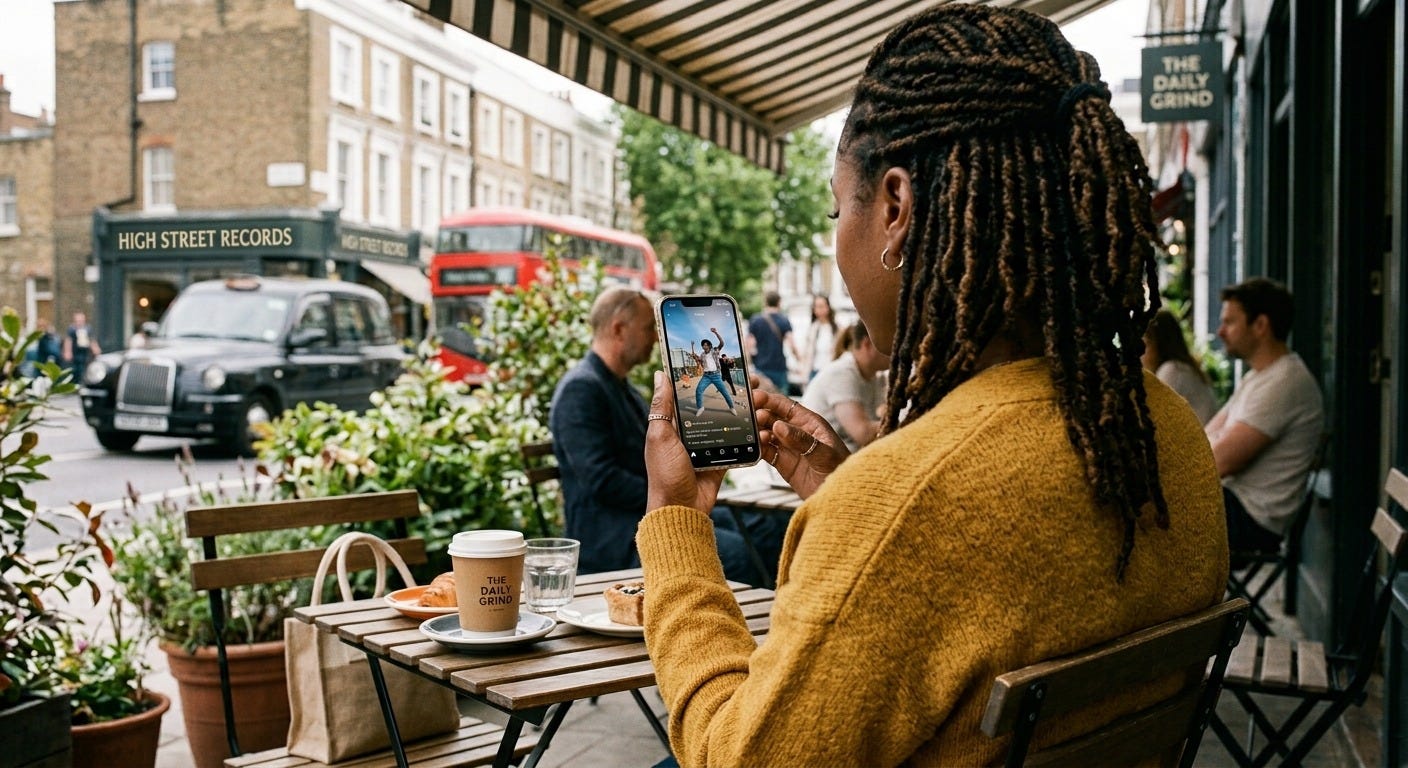
Mobile Data Vampometer

INSTATIP: In the Instagram mobile app, click on your Profile picture > then click on the 3 horizontal lines (menu) in the upper right corner > scroll to the Your App and Media section and choose Media Quality > toggle on Use Less Cellular Data and toggle off Upload at Highest Quality.
Vampire #3: FaceTime or WhatsApp video calls
Vacationers often want to share their experience with friends or family back home. Grandma jumps on a FaceTime or WhatsApp video call to show off her surroundings or just catch up with the kids. That adds up quickly. An hour of video calling away from wifi can easily swallow 200-450 MB of data. The best option is to only use FaceTime or WhatsApp for video calls over wifi. Voice calls using FaceTime or WhatsApp consume less than 30 MB per hour.

Mobile Data Vampometer

What about social media posting?
As long as you do not have “Upload at highest quality” switched on as shown above, Instagram and Facebook will probably compress images and videos while uploading so even if you share numerous photos, it won’t make a huge dent. If you are posting lots of videos, that can add up though. To be safe, wait until you are on wifi to post.
Vampire #4: Streaming music
Audio content uses far less data than video per hour, but people tend to listen longer and are more likely to do so away from wifi. Again, unless you are lounging by the pool or sitting on a beach all day, you’ll probably stream less music on vacation away from wifi. If you do, be aware that standard quality music streaming uses about 40-70 MB per hour up to 150MB per hour if using high quality audio or downloading podcasts. So, yes, many hours of streaming music can suck down data as quickly as you take down those margaritas! FYI, podcasts tend to use less data, about 30-60MB per hour. Download them over wifi.
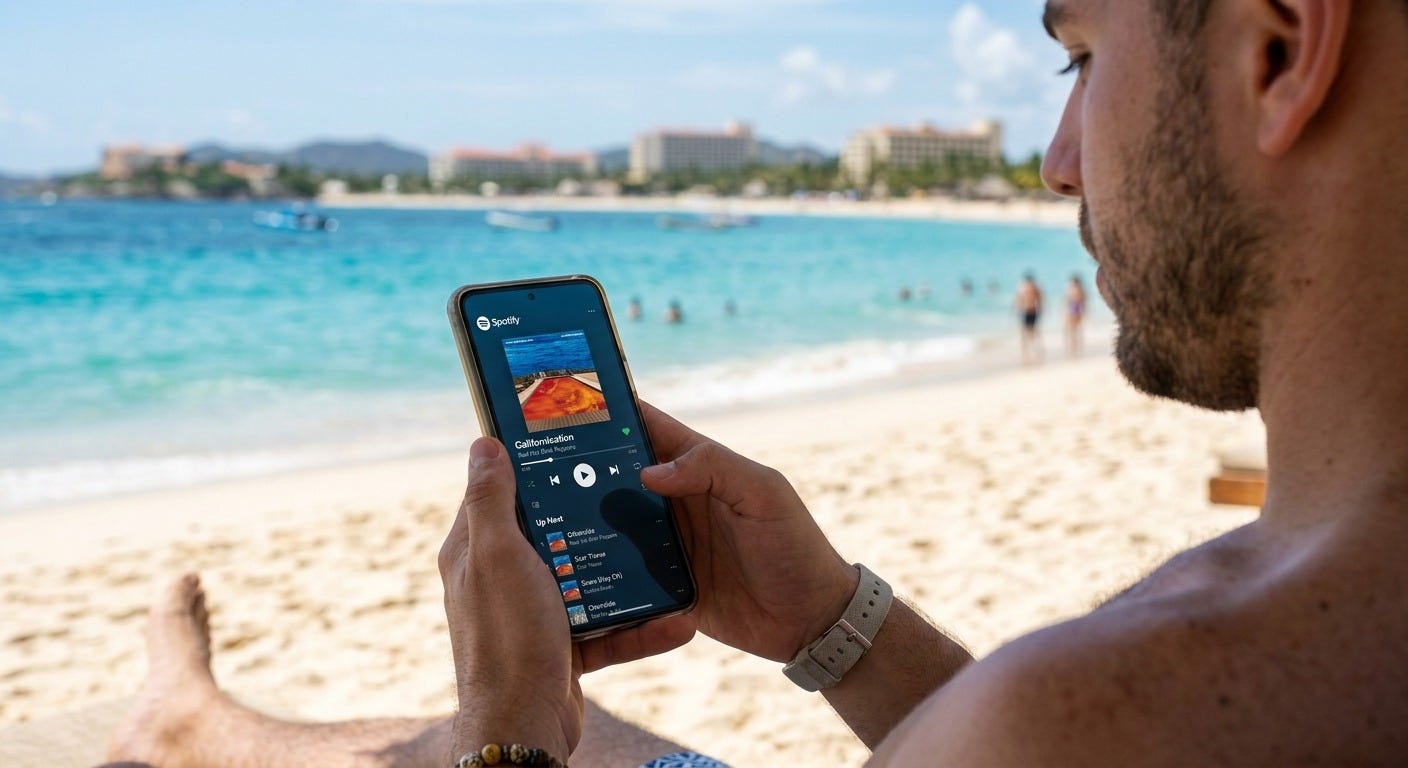
Mobile Data Vampometer

Vampire #5: Web browsing on-the-go
Phones have largely replaced physical guide books as the traveler’s source of updated, on-the-go information. Travelers frequently book tickets/tours, get train schedules, look up information on tourist sites they plan to visit, and much more. Light browsing uses about 20 to 50 MB per hour and average browsing is up to 100 MB per hour. Not much you can do to reduce your usage except try to do as much browsing as possible on cafe/restaurant/museum/hotel wifi networks.
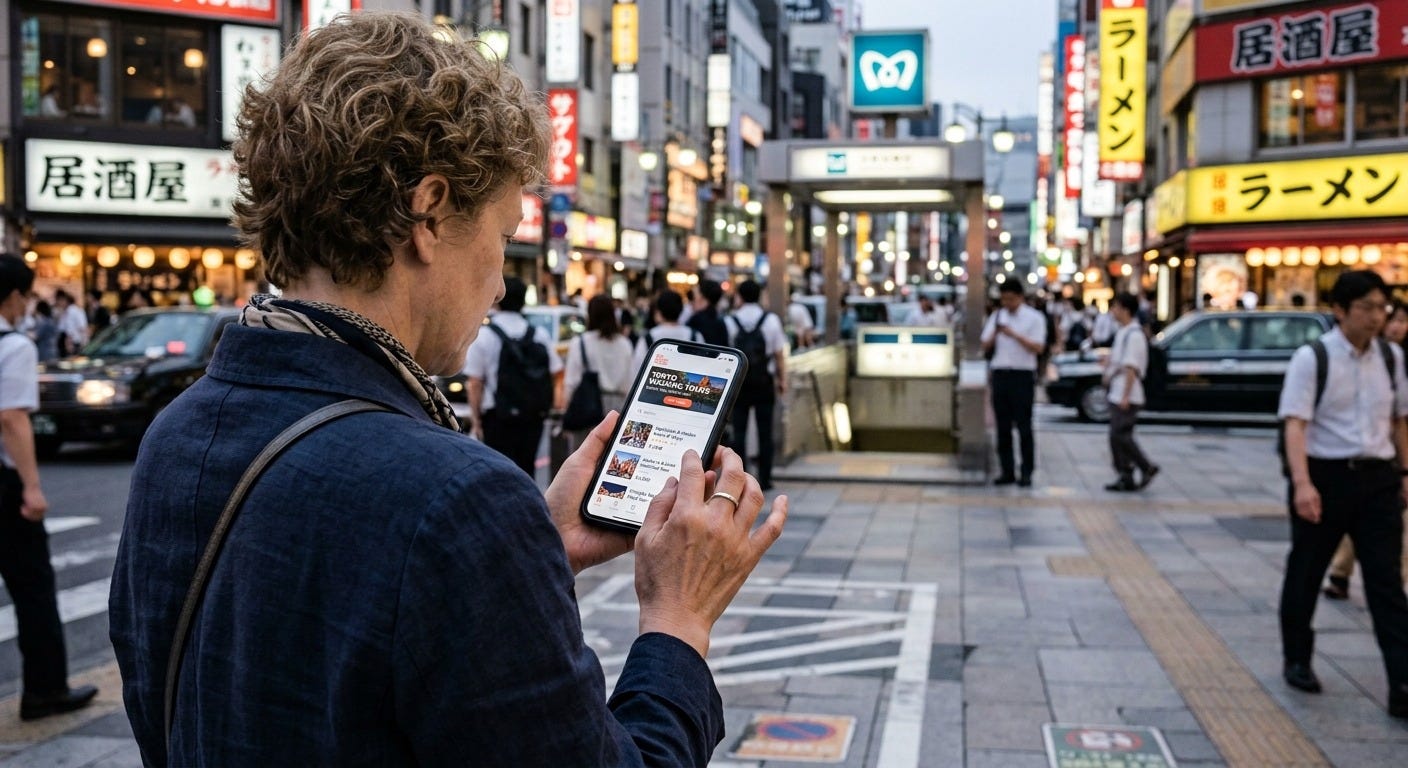
Mobile Data Vampometer
PLANNING A CRUISE? Cruise lines charge a fortune for internet at sea. There are far cheaper options such as GigSky (fyi, we do not receive any commission)
More like pesky mosquitoes than vampires…
Surprise! The following activities don’t use nearly as much mobile data as you may think.
Mapping and navigation
You may be surprised to know that Google, Apple and Waze mapping use a relatively small amount of data, usually 3-10 MB per hour. If you are on a road trip, 10 hours of driving might consume <100 MB if you are not using live traffic or satellite view. This can double or triple data consumption (check your settings in the app).
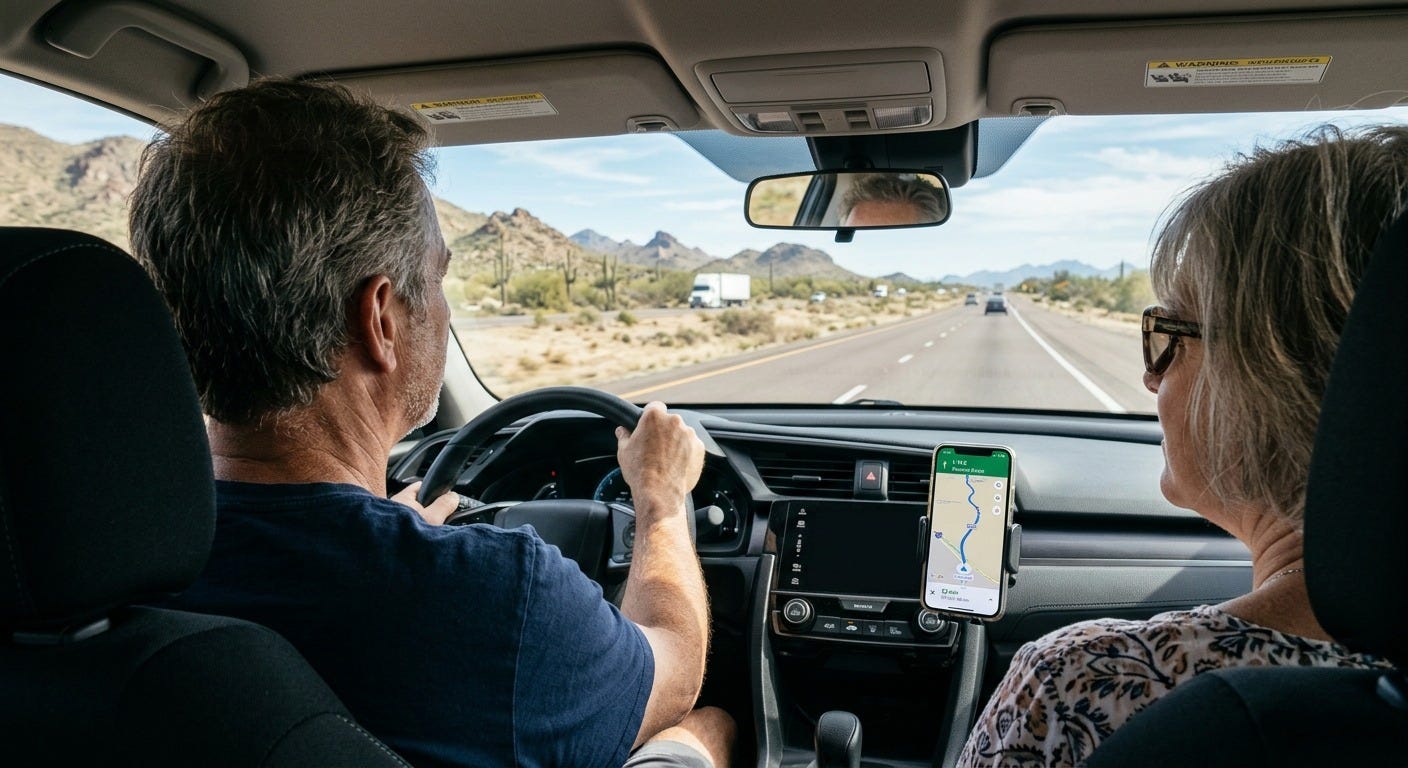
Mobile Data Vampometer

PRO TIP: Google and Apple Maps both allow you to download the map area (Paris, for example) over wifi ahead of time. This is a REALLY smart thing to do if you will be in more remote areas with spotty cellular coverage. Turn by turn navigation works but live traffic and automatic rerouting due to traffic is not enabled.
Google Maps: Click on your Profile photo > select Offline Maps > then Select Your Own Map then drag the box over the area you need. Definitely download these over wifi as the files are large.
Apple Maps: On iOS 17 and later, click on your Profile photo, select Offline Maps, then download an area.
Waze: Does not offer offline maps
TRUE STORY: Several years ago I visited Barcelona on a quick work trip. I was trying to find a bar to meet some friends from the US but was lost in the maze of narrow streets. I didn’t want to turn on my phone because I had forgotten to purchase an international plan or a local SIM card. I finally relented and took my phone out of airplane mode so I could map to the bar. My phone was off airplane mode for 10 minutes maximum. When I got home, I had a $203 data bill. How? When I turned on my phone, all apps, all emails and all photos updated along with a relatively small amount of data used for mapping. Expensive lesson!
Texting photos to friends and family
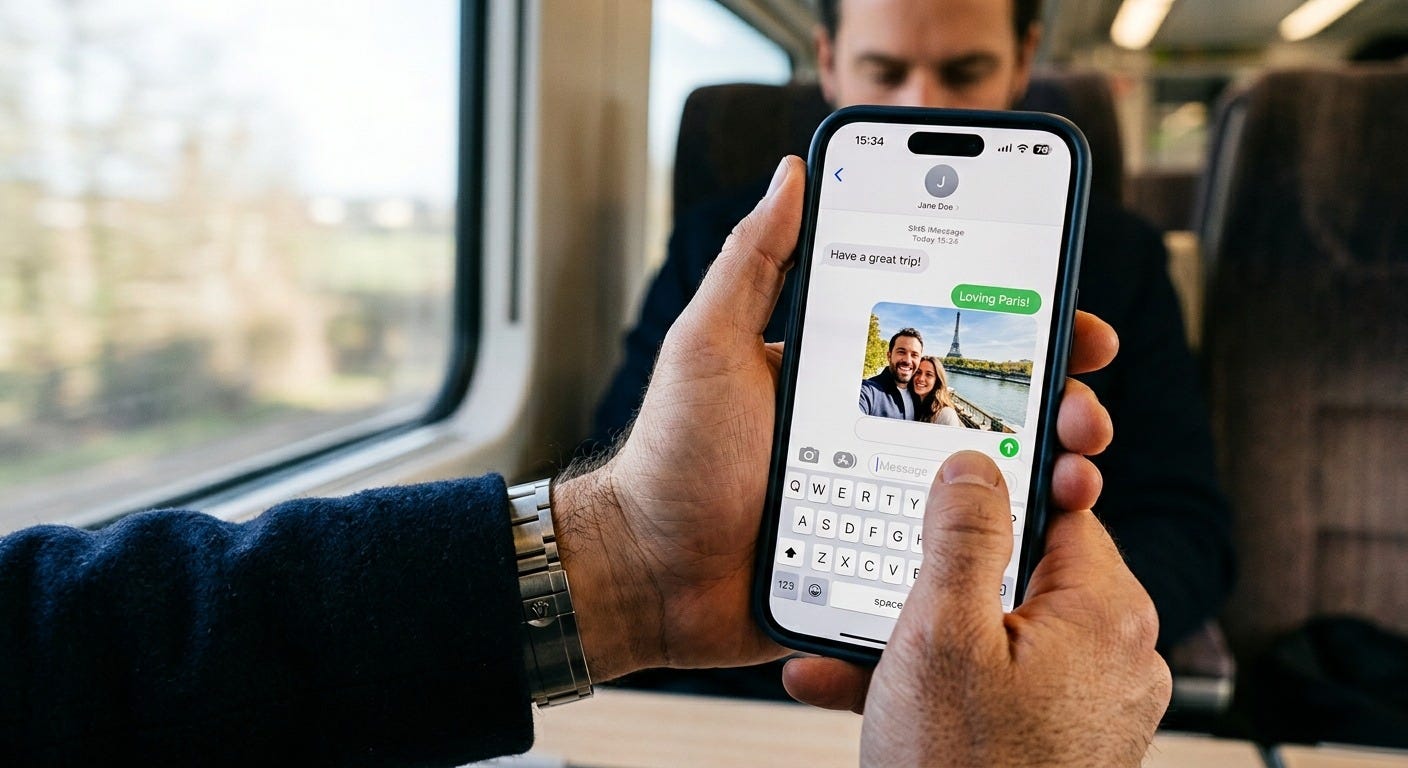
Many travelers share photos via SMS while on vacation but it’s more common to post them on social media. Nonetheless, if you find yourself texting 10-20 vacation photos or a few short videos, that can consume more mobile data than a day of mapping or email. Wait until you are on wifi to do so.
Mobile Data Vampometer
Google Translate using live camera translation

This is an indispensable travel tool. One handy feature is the ability to hold up your phone camera to a sign or menu and have it translated into English or another language. Using this feature consumes about 5-20 MB per minute. Most people are using this function for short bursts so the overall amount of data used is relatively small. Standard text translation uses hardly any data and voice translation uses a relatively small amount of data. Download the offline version of Google Translate for the language(s) you need before you travel. Most functionality will work, with the exception of live conversation translations in certain language pairs.
Mobile Data Vampometer
Data thirsty vampires waiting for an opportunity to strike the unsuspecting
The following are not normally problematic for using your mobile data, but they can be huge issues if some particular settings on your phone are not set correctly.
Background photo and video backups
This vampire is sneaky. Most of us take a LOT of photos and videos on vacation. That almost always occurs away from wifi connections. Most phone photos are 2-4 MB each so if you take 200 photos on vacation, that’s 200-400 MB to upload. Videos are far larger, 60 MB per minute at the default setting, or up to 170 MB in 4K (on latest iPhones).
It’s easy to accumulate 1-2 GB of photos and videos on a vacation and if you’re not careful, this hidden vampire could quietly devour a chunk of your mobile data. Fortunately, your phone is probably set to sync those photos and videos to the cloud exclusively over wifi networks. If you use Dropbox or other cloud storage for image/video backups, check that too.
Mobile Data Vampometer (only if set to use cellular)
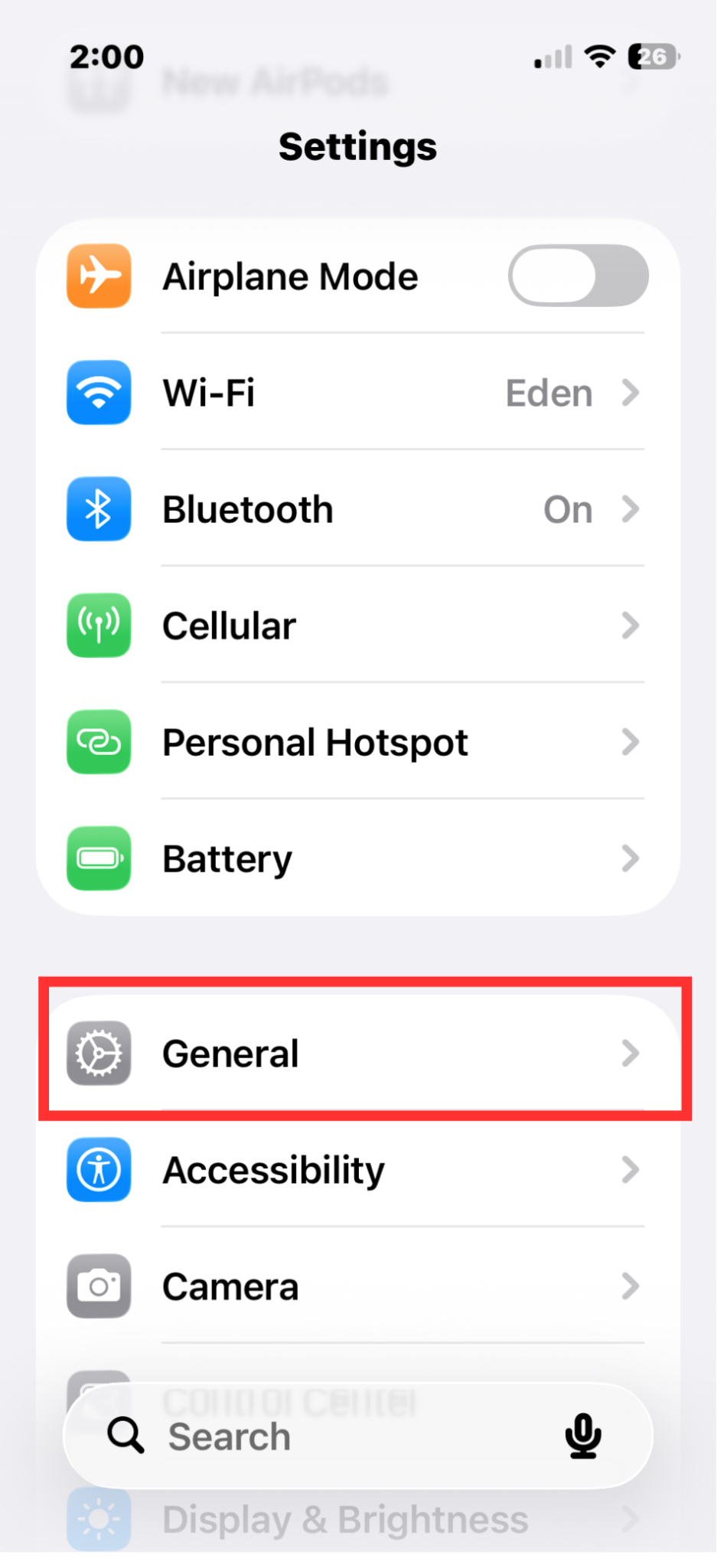
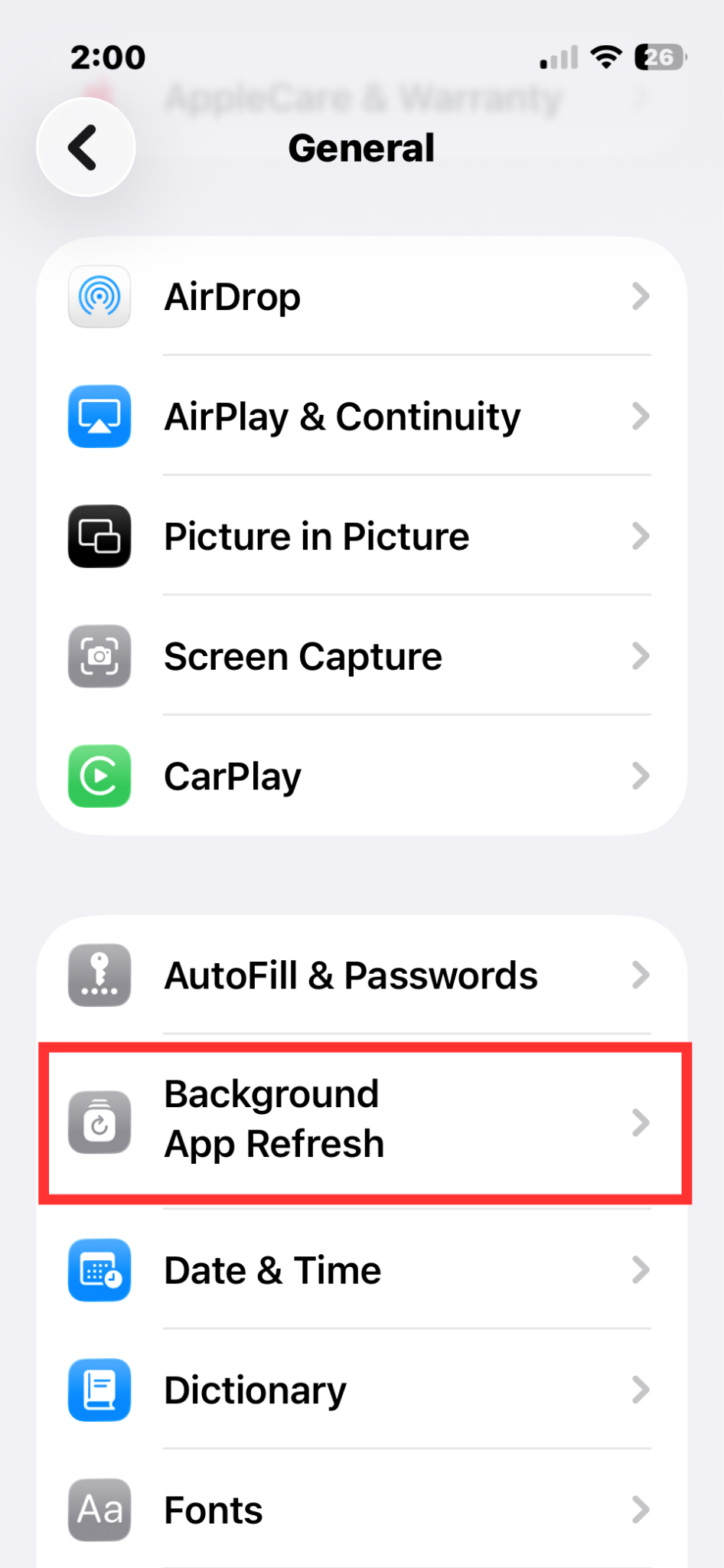
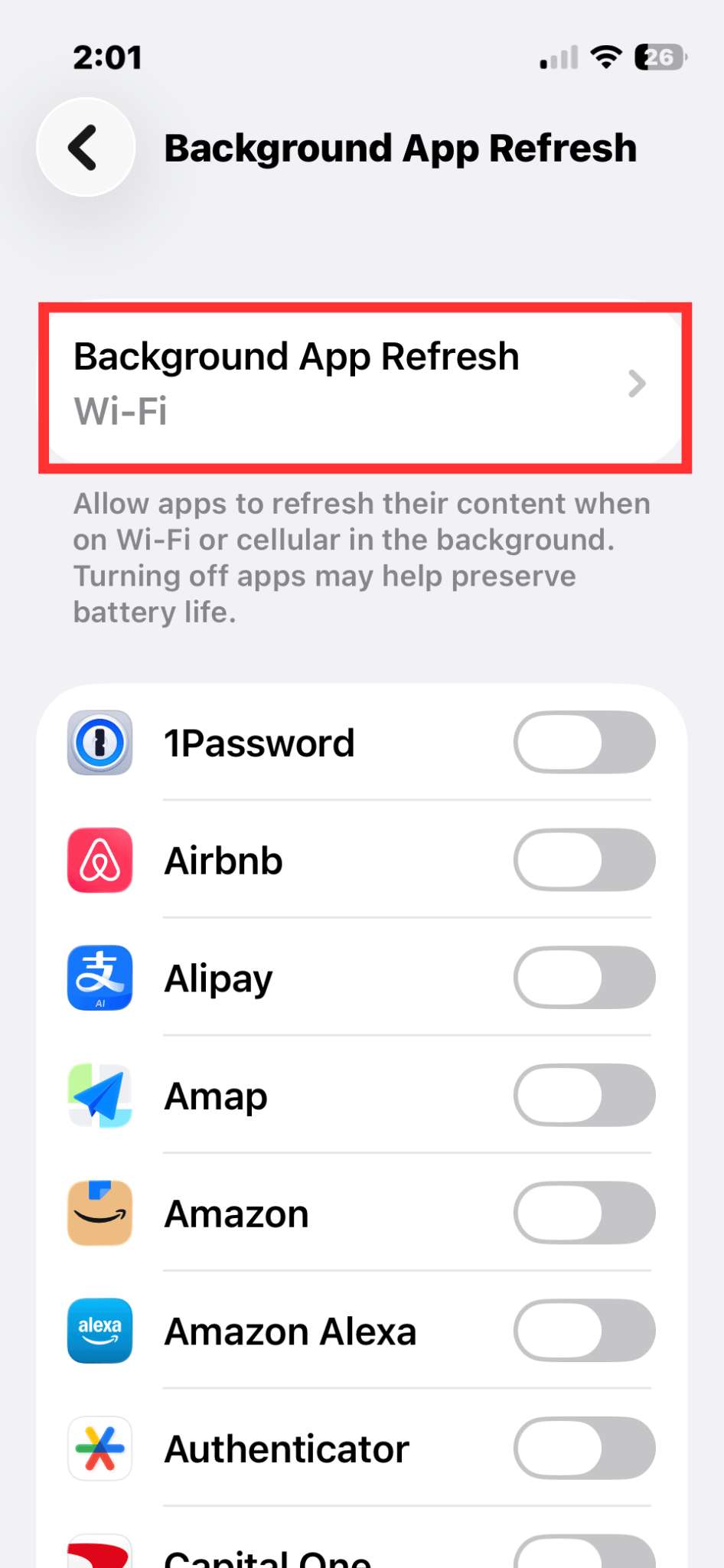
Double check your phone settings.
The screenshots below are for iPhone. I cannot competently provide guidance on Android. Nonetheless, more info on how to reduce cellular data use on Android phones can be found here.
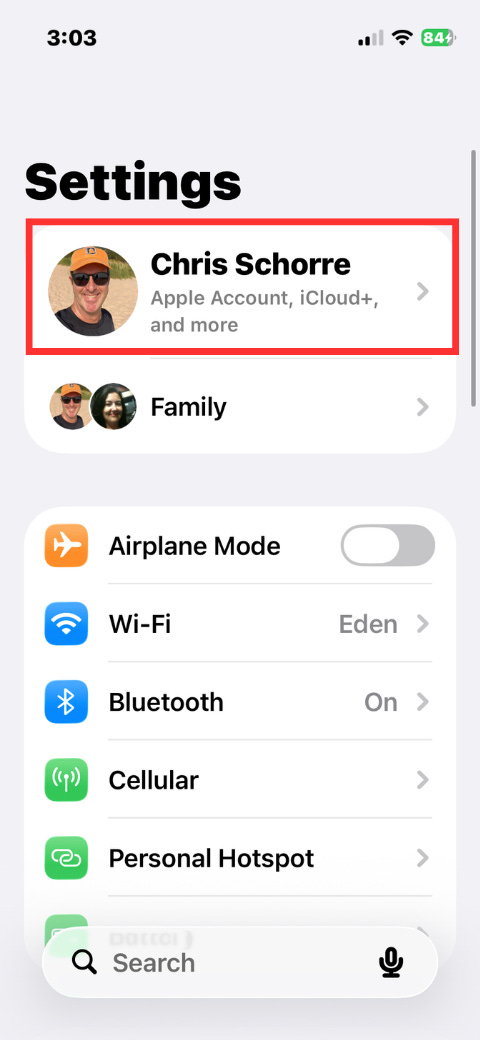
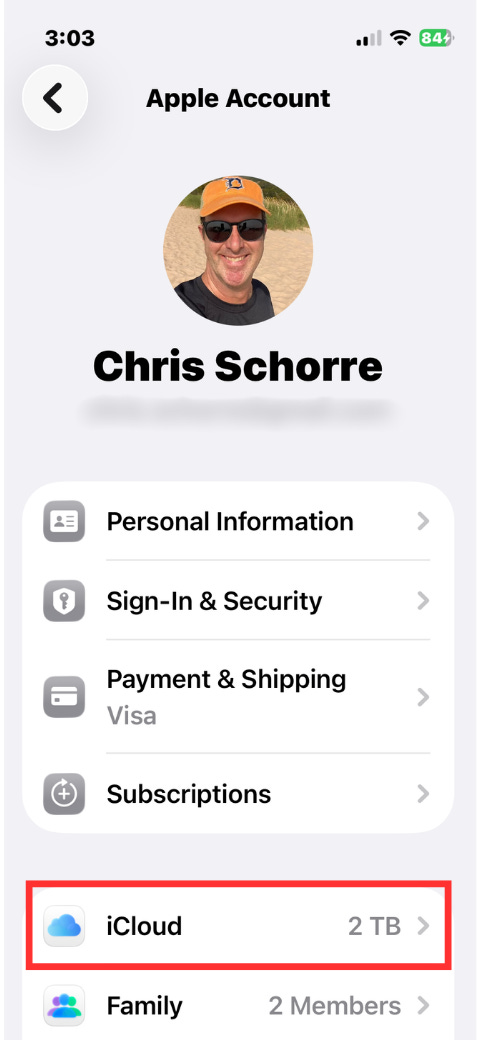
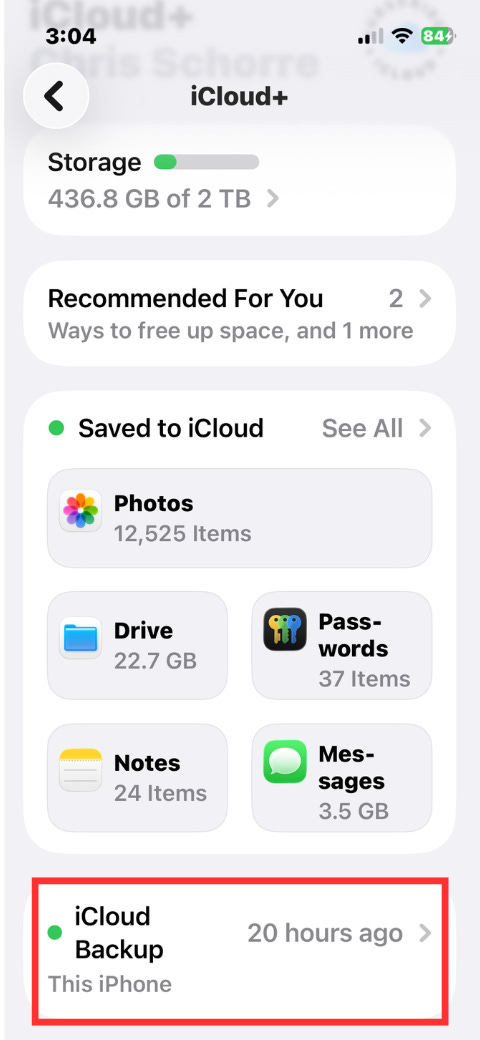
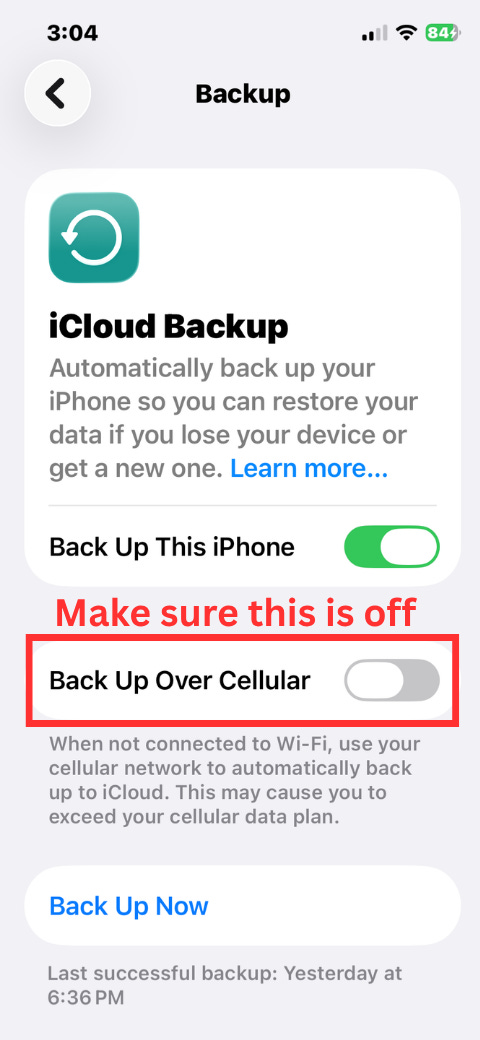
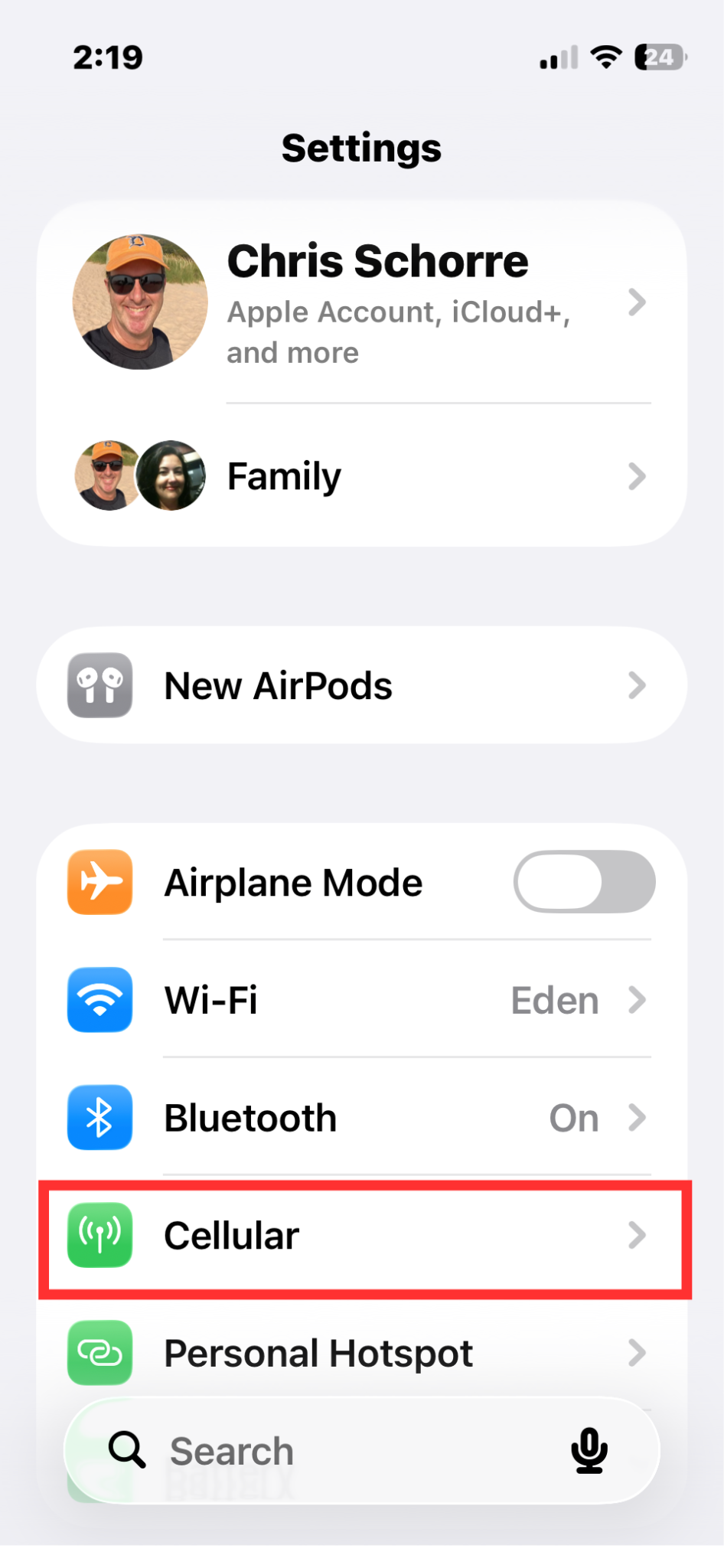
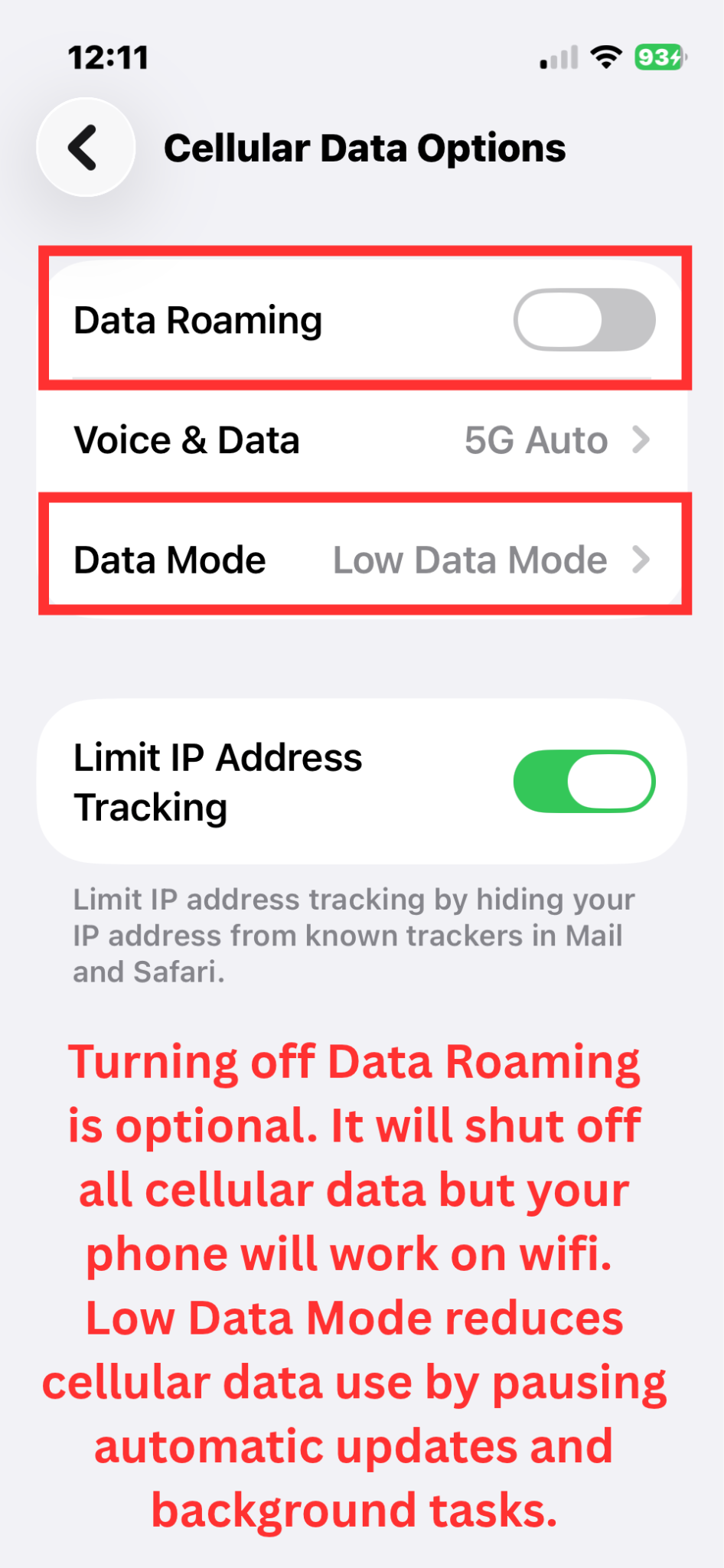
Also go back to the first screen in Settings and check this too. This is the easiest way to ensure you use no international data at all, but it restricts you to wifi only.
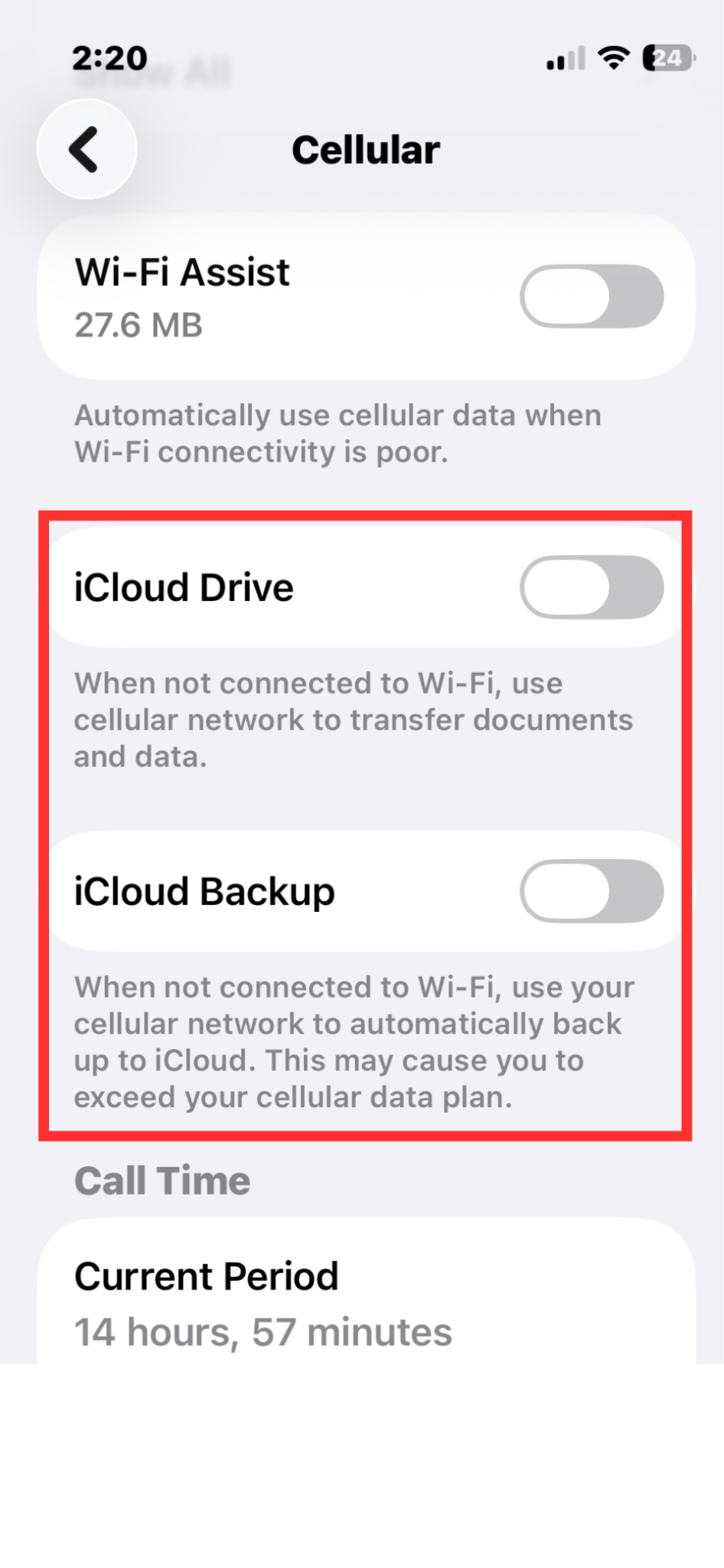
While you are on that same screen, scroll down the page and change iCloud Drive and iCloud Backup so they only update over wifi.
Background app and phone software updates
If you think about all of the apps you have on your phone you may not realize that they are often updated automatically along with the operating system on your phone. Also, operating system updates can be particularly large, often in the 1-3 GB range. Because these updates happen in the background, Apple and Android phones default to download these files over wifi only. That being said, it’s worth checking to make sure you have not inadvertently changed this some time in the past. See how below.
Mobile Data Vampometer (only if set to use cellular)
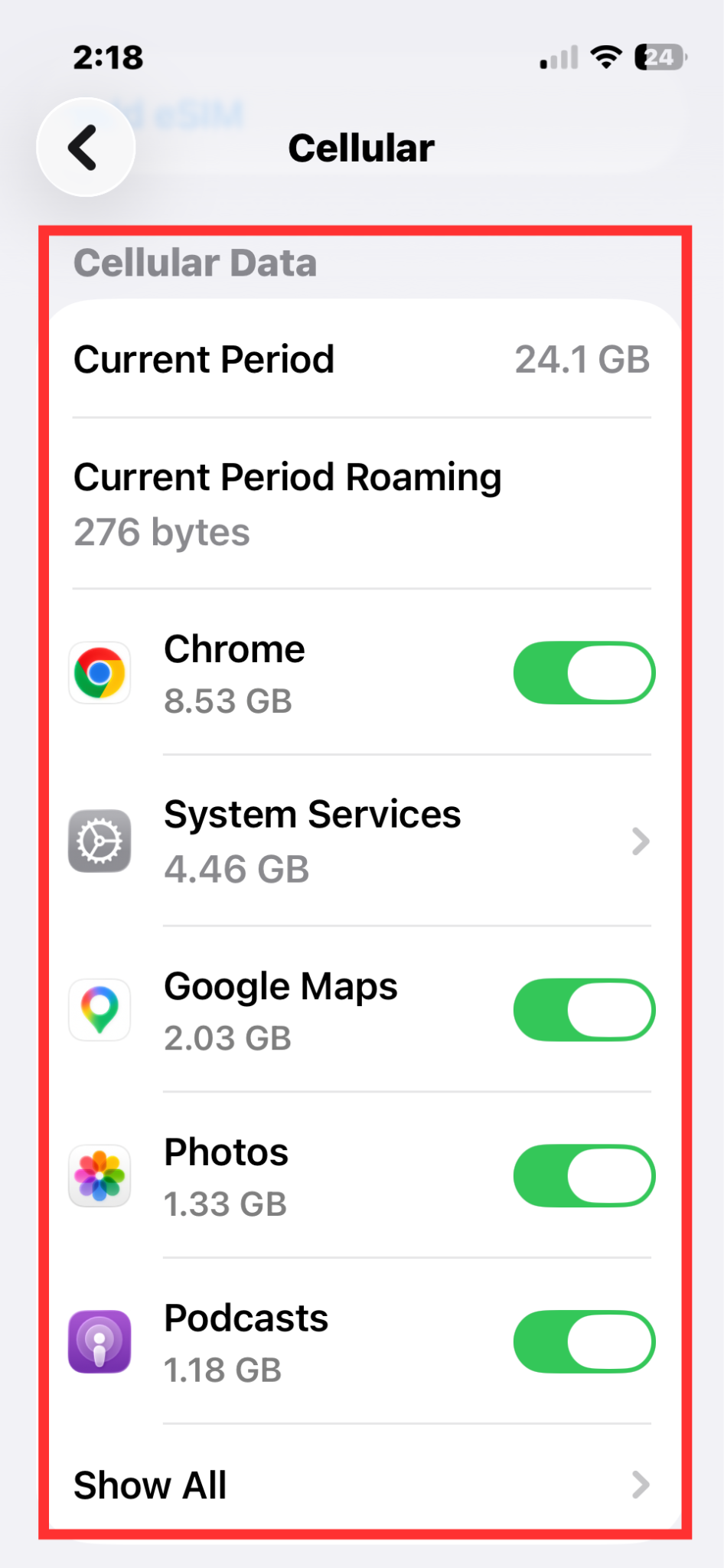
Want to understand how much data you use now and how it’s used?
On your iPhone, navigate to Settings > Cellular and you can get an idea of how much data you are using in specific applications. Log in to your mobile carrier account as well to compare overall use.
Parting thoughts
Before you go on your trip…
1. Know thy hidden data vampires and address them proactively before you leave home
2. Understand how much data you get from your mobile carrier each month when traveling outside your home market
3. If you have an unlocked phone or your phone is not under contract anymore, consider buying a temporary travel eSIM plan from Holafly, Airalo, Saily or another carrier. It’s far cheaper than paying $12 per day to your current carrier. These eSIMs are for data only, not calls or SMS.
4. If you might want to watch TV/movies, use mapping or play music, download as much as possible before you depart.
And if you are traveling with teenagers, I wish you luck on so many levels.
About Chris
In 2026, after 25 years in Austin, Chris and Julie sold most of their possessions and decided to travel globally full time. Chris started focusing on travel writing after a long career as a copywriter and marketing executive. A lifelong learner, he focuses on what it takes to plan, sustain and love life as a long-term traveler, and associated practicalities for people over 50. Although new to travel writing, he is certainly not new to travel, with 100+ border crossings on 6 continents since 1997. Come along for the ride!